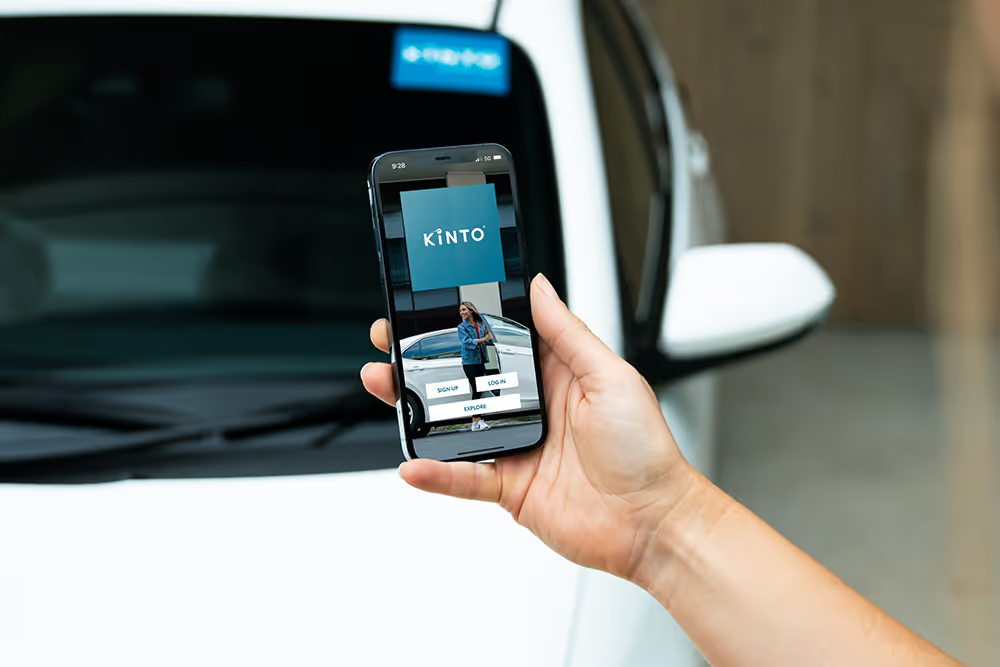
Booking a rental car can be hassle-free with KINTO. Our car hire app has everything in one place, from booking, unlocking, starting the vehicle, managing your booking, and troubleshooting. You can do just about everything from the KINTO app!
In this guide, we’ll take you through the app step by step so you can get familiar with the KINTO car hire app and book and drive with confidence.
How to sign up to KINTO
Download the KINTO car hire app
To get started, download the KINTO app to your smartphone from the App Store or Google Play.
Create Your Account
Create your account by following the prompts. Enter your email and a strong password, then select send verification code to your email. Enter the code and proceed to the next step.


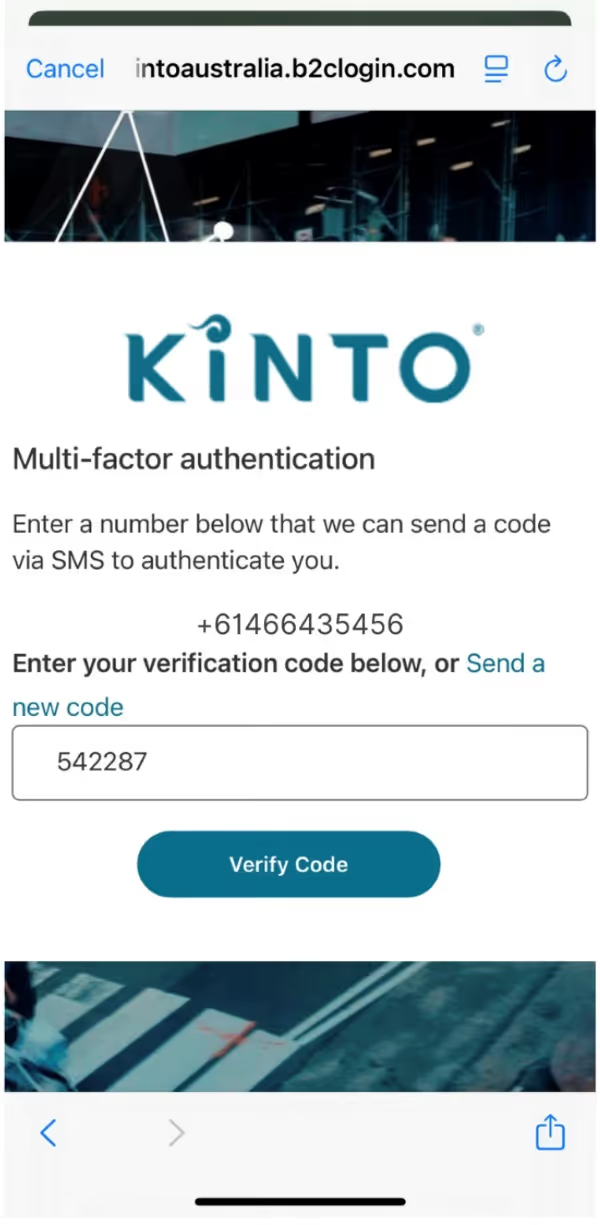
From here, it’s time to set up 2-factor authentication to secure your account. The example below shows how to do this using your phone number. You can also use an authenticator app if you don’t have access to a phone number (this can be helpful for our overseas users).
Follow the prompts to enter your name, address, date of birth, etc. At the end of this page, you’ll be asked to take a selfie holding your licence to verify your identity.


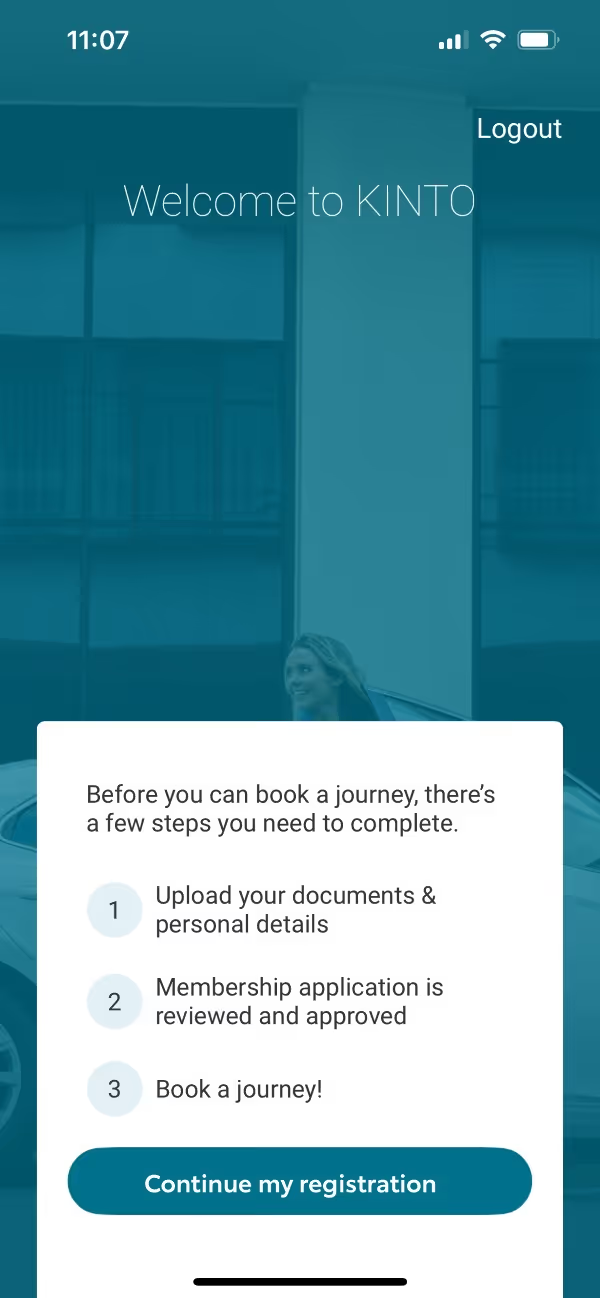

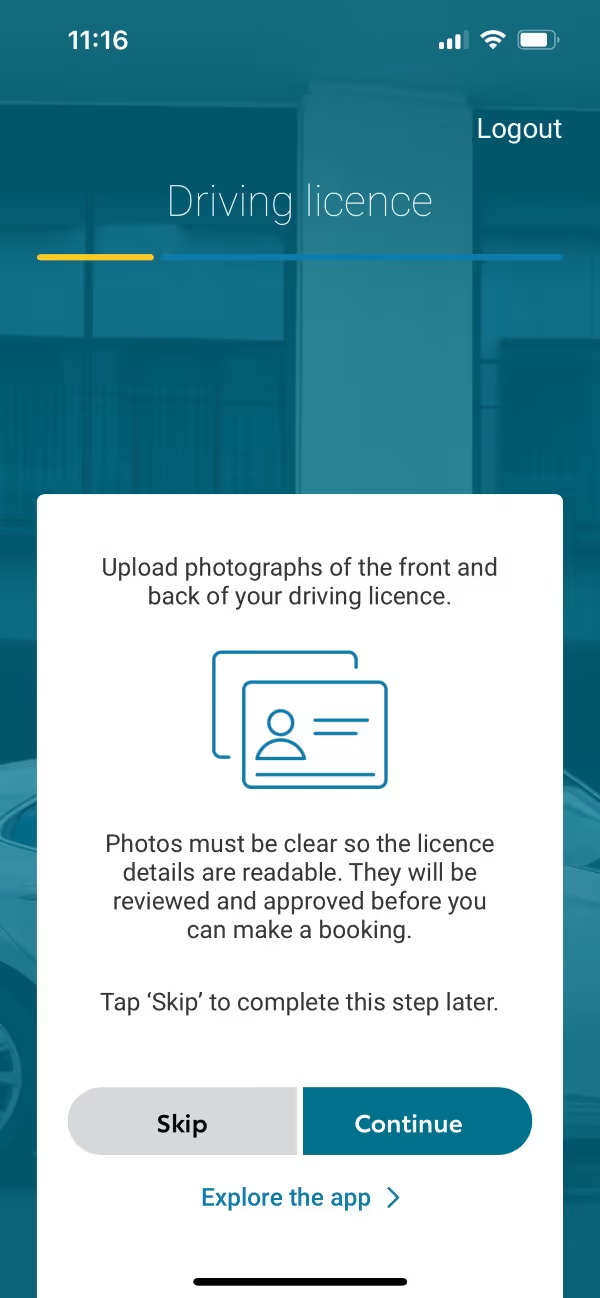
Follow the prompts to get your application ready for approval. For eligibility and identity verification purposes, take a clear photo of the front and back of your licence, then upload them to the car hire app.
You’ll then be guided to enter your card information (please note, no charges will be made to your card at the time of registration). Your personal details are securely stored and handled in accordance with our Privacy Policy. View our policy to see how we protect your data.
Then complete the member questionnaire and enter a voucher code if you have one.
Once complete, select submit, and your application will be sent to our team for approval. Please allow 3 - 24 hours for application approval. Once approved, you can schedule your first KINTO rental.


How to navigate the app
The KINTO car hire app is easy to navigate and straightforward for members to use. Let’s get familiar with the app and take a walk through. The KINTO car hire app opens to a map with live availability–this is the home screen, where you can search to find cars located nearby and book a KINTO.
Select the ☰ icon to expand the menu.
Book a journey & my bookings
The first item on the list is Book a journey; selecting this will return you to the home page to book a car.
My bookings is where you can view your upcoming or past bookings.
My account
My account will give you access to your information. The menu here shows you can view the photos of your Driver's Licence and the card information you entered at registration.
Private memberships is for KINTO for business, where businesses and their employees can access KINTO vehicles reserved for them.
Pending payments is where you can find any payments owing to KINTO.
Cancel membership in the unlikely case that you want to close your KINTO account, this is where the process can be started.


Vouchers & promo codes
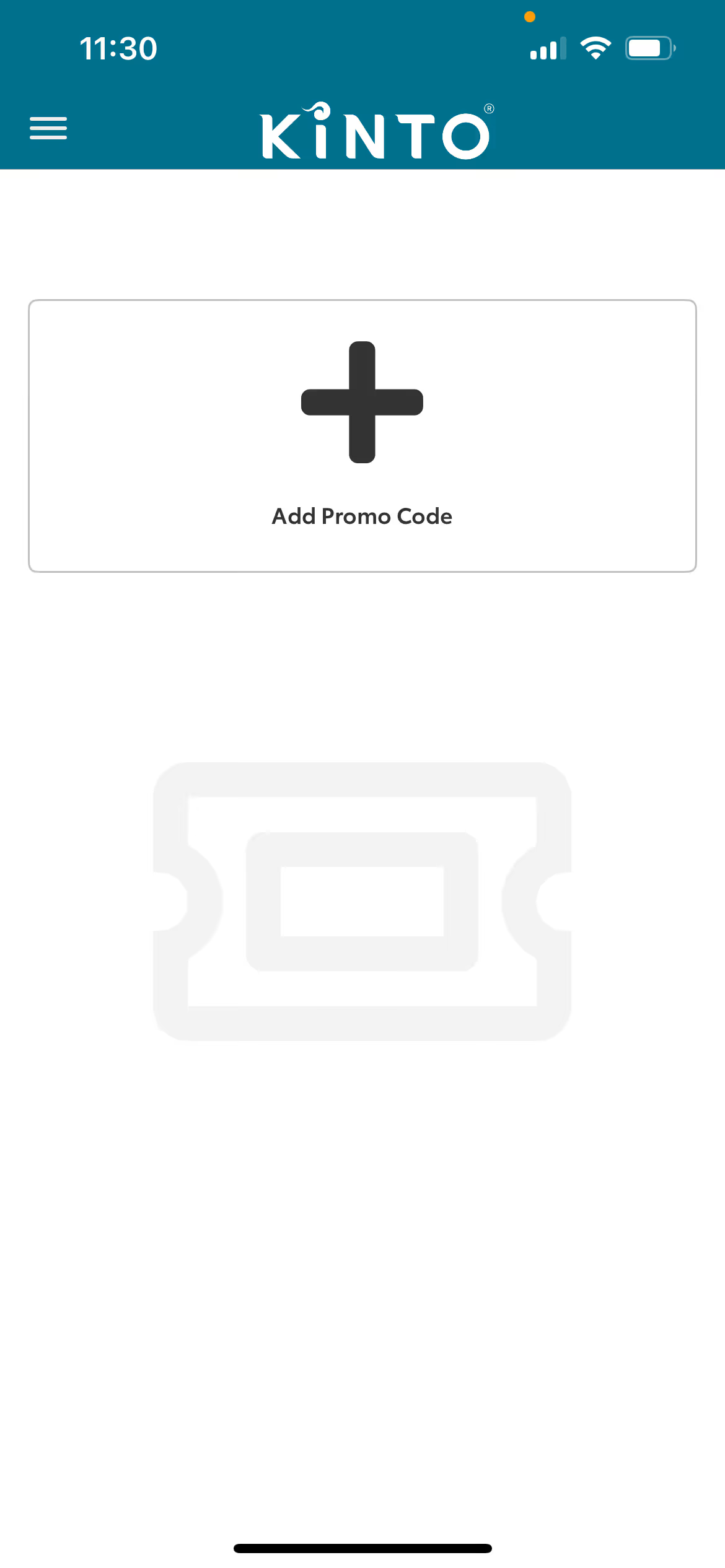
If you have a voucher or promo code, you can easily add it in the app, and it will be applied automatically to an eligible booking. The process for adding these is the same.
For example, open Promo codes, select the + symbol to add the promo code, enter the promo code, we have used the code WELCOME50, which is valid for use on your first KINTO car hire booking for $50 off. Select add, and you’re all set!



Help and feedback
This final section of the KINTO app is where to go for assistance.
Frequently asked questions will direct you to the KINTO website's FAQs section, which is full of helpful information and quick answers to questions you may have. If you have a question, this is your first stop to find an answer.
Troubleshooting provides quick answers to some troubleshooting issues directly in the app.
Lost property is where you can go if you left something behind in a car after a booking. Here you can lodge the item left behind.
Booking feedback allows members to leave feedback on their booking once it's complete.
Terms & conditions opens the Member Agreement for review.
Privacy policy opens the Toyota Group Privacy and Credit Information Policy for review.



How to book a KINTO car
Follow the step-by-step instructions to see how quick it can be to hire a car.
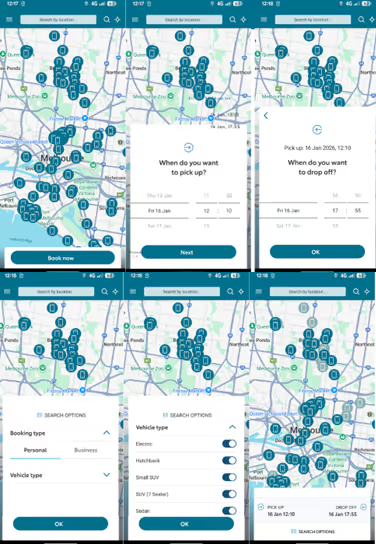
First, open the KINTO car hire app. This main screen lets you view live availability, search for vehicles by location, and see nearby vehicles available for hire.
Select Book now to input the date and time you would like to pick up the vehicle.
Click Next, then input the date and time you’d like to drop off the vehicle.
In our example below, Miranda has some errands she needs to run that should only take her a couple of hours. She opts to pick up the vehicle on Friday, 16th January at 12:10 PM and return it the same day at 5:55 pm.
In the next step, you will need to confirm whether the booking is Personal or Business. In this instance, it’s for personal use.
If you expand Vehicle type, you have the option to select and deselect car types you’d like to hire. Miranda doesn’t have any specific needs, so all of these are kept selected.
The map will then update with available cars for hire during this time.
Miranda considers those near her city apartment and lands on the Toyota Camry, which will suit her hire needs. She is quoted $17.28 + $0.36 per km for the hire. Once she is happy with this, she selects Next.
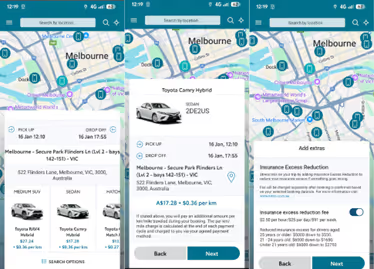
In the next step, you can add Insurance excess reduction to reduce the amount of excess paid in the unlikely event of an accident.
In our example, Miranda believes this is a worthwhile charge and enjoys the added confidence and protection it provides. She confirms she would like to add excess reduction at a charge of $2.50 per hour for her short booking.
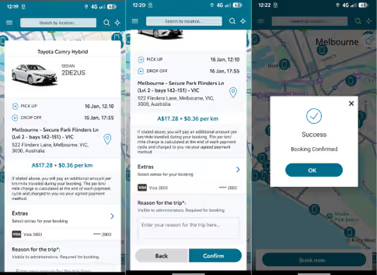
The final steps are the summary of the booking, where you must add a reason for the booking (running errands) and confirm that all the booking details are correct.
Select Confirm to finalise the booking and that’s it!
A simple booking process that takes a few minutes, which you could even do right from the couch.
Managing your booking
Upcoming bookings
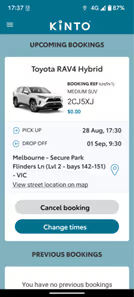
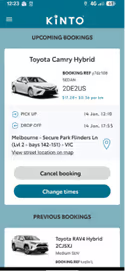
If you need to amend your booking, open My bookings in the KINTO app.
Here you can view upcoming, current and previous bookings.
To make changes to your upcoming bookings, select Change times to alter the pick-up and drop-off times to extend or shorten your booking.
Or if you need to cancel, select Cancel booking.
With nothing to pay until 2 hours before your scheduled booking time, you can easily make changes to your booking in the KINTO app.
Current Journey
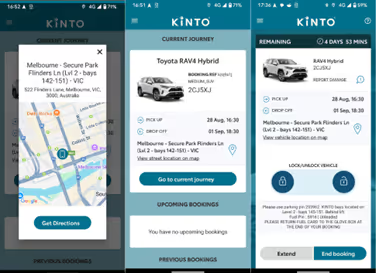
When it comes to starting your booking, a new section will appear in the My bookings tab of the KINTO app to show your current journey. Here you can Get directions to locate your KINTO vehicle and begin your booking by selecting, Go to current journey and Start journey.
Once you have arrived at your KINTO vehicle, select to connect to the vehicle in the app. After you’re connected, you’ll be prompted to unlock the car via the app by swiping the lock symbol to the unlock symbol, as shown below.
Here you can also extend your booking or end it early if needed.
Ending your booking
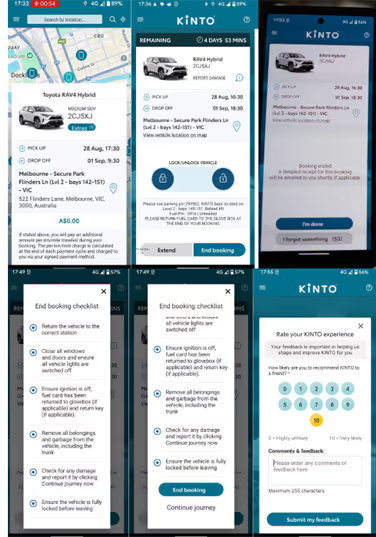
When you’re ready to end your booking, open the app, swipe to lock the vehicle, and select End booking. You’ll then be given a 1 minute countdown in case you have forgotten anything inside the car. If not, select I’m done.
You’ll then be given the end-of-booking checklist to ensure the car has been left in the correct spot, with no garbage inside, locked up, etc.
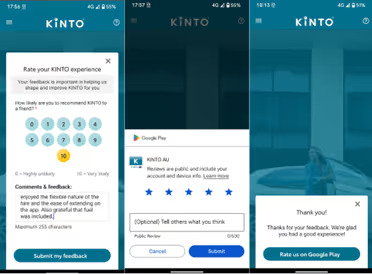
After this, you can leave a rating and review of your KINTO experience and share any comments or feedback.
Once you’ve explored the features, the KINTO car hire app becomes an easy way to hire a car and unlock the freedom to explore your way.
With booking, unlocking, and support all in one app, getting started is simple. Download the KINTO app today, become a member, and book your first trip!
What do I need to sign up for the KINTO car hire app?
Sign up is simple and quick. Follow the prompts and fill in your information. You'll need a photo of your licence (front & back–Australian and International licences are accepted), your bank card information to make a booking, and a selfie holding your licence. Some of these steps can be skipped, but you’ll need to complete them to finish your application and book a KINTO.
What cars are available for hire in the KINTO fleet?
KINTO offers a range of hybrid vehicles for hire through our easy-to-use car hire app. See the full list of cars and pricing on the KINTO website or view live availability through the app.
What’s included in the car hire price?
All KINTO bookings include insurance, fuel, 24/7 roadside assistance, maintenance, and servicing, so you pay only for what you use and enjoy peace of mind when you get behind the wheel.